 ) in the top-left of the window.
Account settings enable you to poll proprietary sources as well as the LogTech public server. Poll a data source either directly or using a proxy server.
Each data source you create appears as an account. Move the entries in the list of accounts up or down to set the importance. UWIs are polled for data starting from the account listed first and then working down. When data is found for a UWI, data for that same UWI is ignored when accounts further down the list are polled.
Details for both adding or editing user account settings and for configuring hierarchal searches appear below.
These settings are configured for you when LOGarc is first installed. Don't change them unless advised to do so by Customer Care or internal support personnel.
To add or edit user account settings
1. Click Accounts () in the top-left of the window.
The Accounts dialog box appears.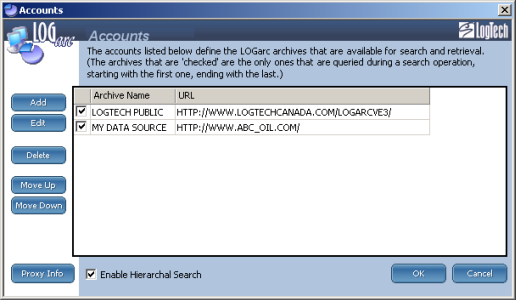
2. Click either of the following:
Add - create a new account. Do this to add a link to a proprietary database. You can set the order in which multiple databases are polled.
Edit - change details of an existing account.
Depending on your selection above, either the Add User Account or Edit User Account dialog box appears.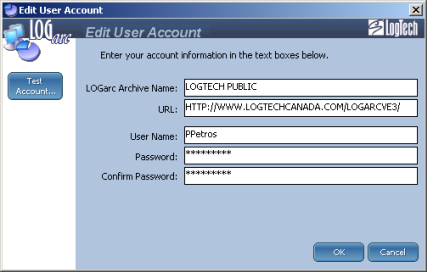
3. Type account details and then click Test Account.
A message appears in the lower portion of the Edit User Account indicating whether connection with the server was established.
4. Click OK.
If setting up a connection to a proxy server, click Proxy Info to display the Proxy Info dialog box and type the details.
To configure hierarchal searches
1. With the Accounts dialog box displayed and the data source you want to poll configured using the process that appears above, at the bottom-left of the Accounts dialog box, select Enable Hierarchal Search.
2. Select one of the data sources to move up or down in the display pane (the first entry in the list is polled first), and then click either Move Up or Move Down.
| About Searching |